Have you ever wondered why your internet connection seems lightning-fast during speed tests, but sluggish when you’re browsing or streaming? You’re not alone. Many users experience this frustrating disconnect between the impressive speeds shown in tests and the sluggish performance they encounter daily.
This phenomenon, known as the “speed test paradox,” occurs because internet speed tests measure your connection capability under ideal conditions, not real-world usage scenarios. Various factors, including network congestion, router placement, and signal interference, can create this disparity.
Understanding why your Wi-Fi performs differently in tests versus real life is the first step toward improving your actual internet experience. In this comprehensive guide, we’ll help you identify the causes and implement practical solutions to optimize your network for better real-world performance.
The Speed Test Paradox
You’ve probably experienced the frustration of a speed test showing a fast internet connection, only to find that your real-world online experience is slow. This discrepancy between the expected and actual internet performance can be puzzling. Understanding the factors that contribute to this paradox is crucial to resolving the issue.
What Speed Tests Actually Measure
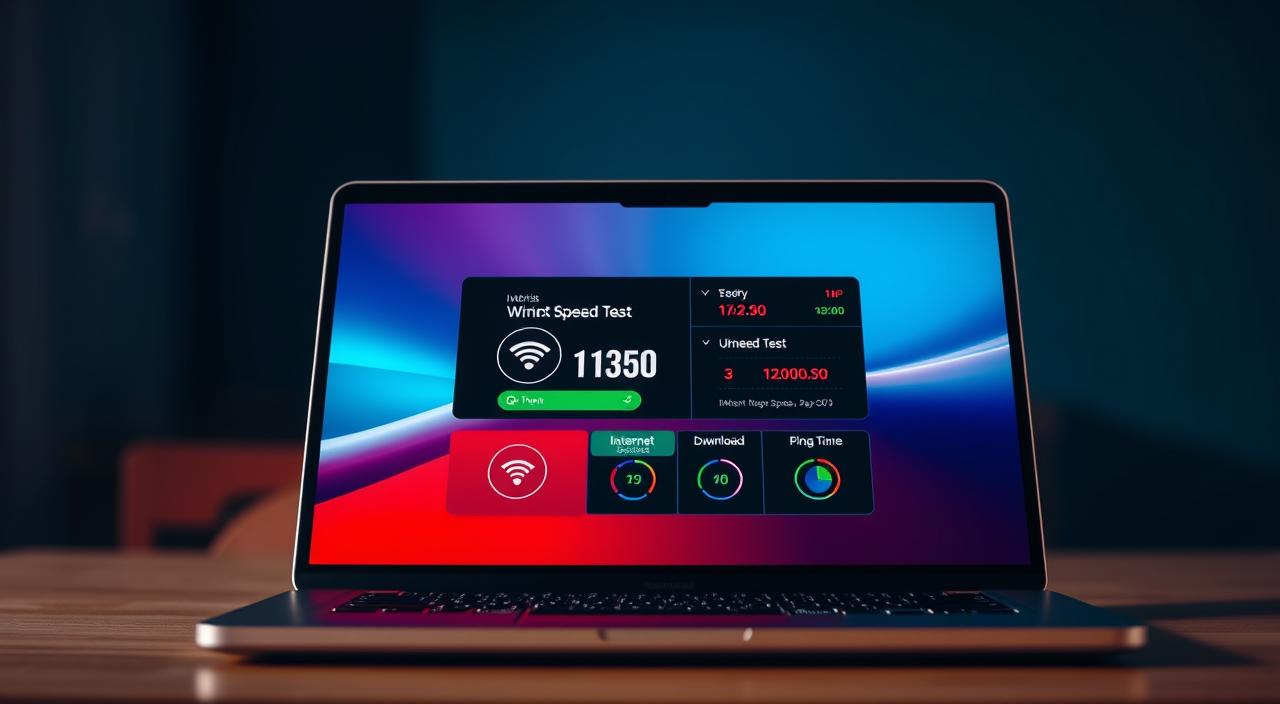
Internet speed tests measure the bandwidth available between your device and the test server. They provide a snapshot of your connection’s performance at a specific moment. However, this measurement doesn’t account for various factors that can affect your real-world internet experience.
Speed tests typically assess the bandwidth of your connection, which is the amount of data that can be transmitted over your internet connection in a given time. While a high bandwidth is essential for smooth online activities, it’s not the only factor that determines your internet performance.
Why Real-World Performance Differs
Several factors can cause a discrepancy between your speed test results and actual internet performance. For instance, when multiple devices share your wifi connection simultaneously, they compete for the available bandwidth, resulting in slower speeds for each device. Additionally, network congestion during peak usage hours can slow down your internet connection.
Other factors include the limitations of content delivery networks and web servers, the distance data must travel to reach different websites and services, and your ISP’s traffic management policies. These factors can bottleneck your experience, regardless of your connection speed.
By understanding these factors, you can better diagnose and address the issues affecting your internet performance. This knowledge will help you take steps to optimize your wifi setup and improve your overall online experience.
Common Causes of the Wi-Fi Speed Gap
If you’ve ever wondered why your Wi-Fi seems fast during tests but slow during actual use, you’re not alone. Several factors contribute to this disparity, affecting your overall internet experience.
Network Congestion and Peak Hours
Network congestion occurs when too many devices are connected to your Wi-Fi network simultaneously, especially during peak hours. This overload can significantly slow down your internet speeds. To mitigate this, consider limiting the number of devices connected during peak usage times or upgrading your internet plan to one that can handle more devices.
Router Placement Issues
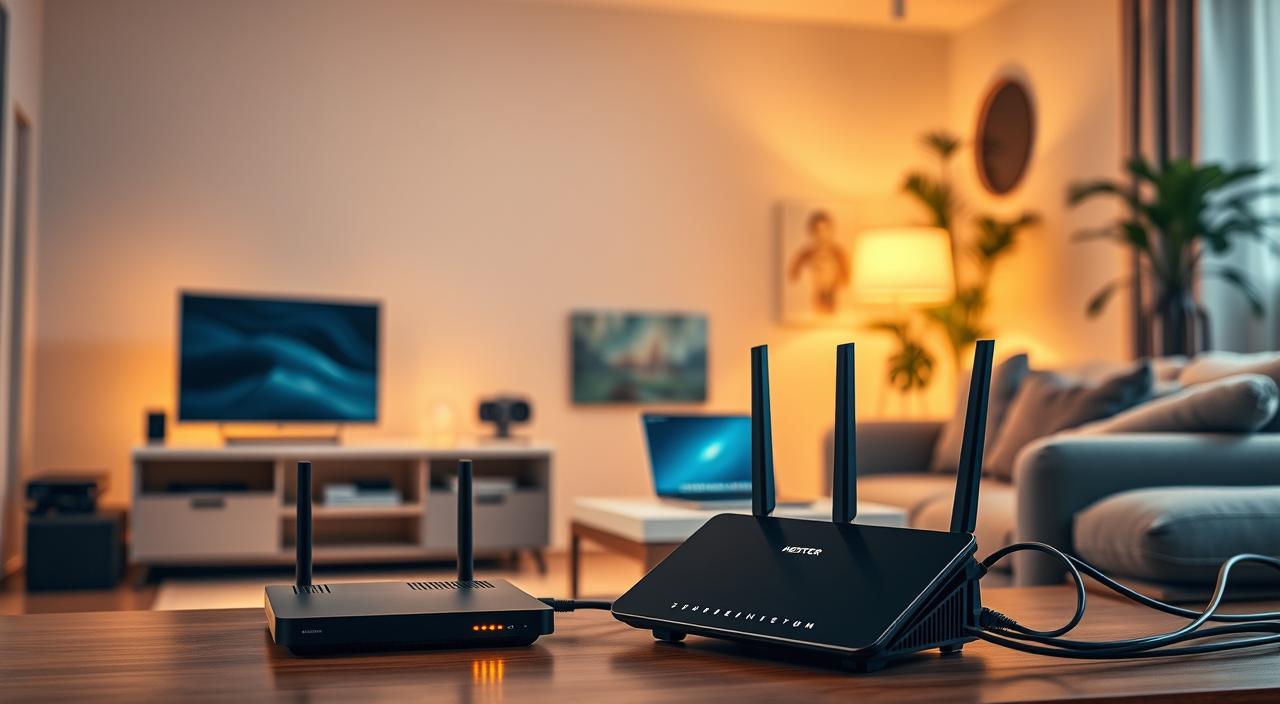
The placement of your router plays a crucial role in determining your Wi-Fi speeds. If your router is placed in a corner or obstructed by walls and furniture, it can lead to poor Wi-Fi coverage and slower speeds. Try relocating your router to a central location to improve coverage and potentially boost your connection speeds.
Signal Interference Sources
Various electronic devices and physical barriers can interfere with your Wi-Fi signal, causing it to slow down. Common interference sources include microwaves, cordless phones, and neighboring Wi-Fi networks. To minimize interference, keep your router away from these devices and consider switching to a less congested Wi-Fi channel.
Device Limitations
Some devices, especially older ones, may not be capable of achieving the same internet speeds as newer models. Older devices with outdated Wi-Fi standards can become a bottleneck, slowing down your entire network. Check the maximum speed of your devices, especially those made more than a few years ago, and consider upgrading them if necessary.
By understanding and addressing these common causes, you can take steps to improve your real-world Wi-Fi performance and reduce the gap between your speed test results and actual usage.
How to Properly Test Your Actual Wi-Fi Speed
Understanding your Wi-Fi’s actual speed requires a more nuanced approach than a simple speed check. Basic speed tests often don’t reveal the true performance of your Wi-Fi network in real-world scenarios.
Beyond Basic Speed Tests
To get an accurate picture, you need to test your Wi-Fi under various conditions. This involves checking your Wi-Fi speed at different times and in different locations throughout your home.
- Testing at different times (morning, afternoon, evening, late night) helps reveal patterns in network congestion.
- Checking Wi-Fi coverage in various locations creates a “heat map” of your home’s connectivity.
- Using multiple devices for testing isolates whether performance issues are device-specific.
Testing at Different Times and Locations
Running tests with varying numbers of connected devices active helps determine your network‘s capacity limitations. Comparing wired and wireless test results from the same location quantifies the performance lost through your Wi-Fi connection.
| Test Condition | Download Speed | Upload Speed |
|---|---|---|
| Peak Hours (8 PM) | 50 Mbps | 10 Mbps |
| Off-Peak Hours (2 AM) | 80 Mbps | 20 Mbps |
| Wired Connection | 100 Mbps | 30 Mbps |
By testing your Wi-Fi speed under different conditions and at various times, you can gain a comprehensive understanding of your home network‘s performance and identify areas for improvement.
How to Troubleshoot WiFi Speed Problems

To address slow WiFi speeds, it’s essential to methodically troubleshoot your internet connection. This process involves checking various components of your network to identify the root cause of the problem.
Checking Your Modem and Router Status
The first step in troubleshooting WiFi speed issues is to check the status of your modem and router. Ensure that both devices are functioning correctly and that their lights indicate normal operation. Restarting your modem and router can often resolve connectivity issues.
Examine the router’s logs to gather information about connection events, errors, and potential security issues that might be affecting your internet connection. This can provide valuable insights into the health of your network.
Identifying Bandwidth Bottlenecks
Bandwidth bottlenecks can significantly impact your WiFi speed. Check for unauthorized devices connected to your network, as “piggybacking” neighbors can consume bandwidth and cause performance issues. Use your router’s interface to monitor connected devices and secure your network with a strong password.
Monitoring your network’s bandwidth usage can help identify if certain devices or applications are hogging your connection, thereby slowing down your WiFi speed.
Diagnosing Connection Drops
Intermittent connection drops often indicate different problems than consistent slow speeds. Use continuous ping tests to monitor connection stability and identify patterns in disconnections. This can help reveal underlying causes such as interference or hardware issues.
Monitoring for pattern-based disconnections, such as those occurring at specific times or during certain activities, can help isolate potential interference sources affecting your WiFi service.
Physical Factors Affecting Your Wi-Fi Performance
Understanding the physical factors that influence your Wi-Fi can help you optimize its performance. Your home’s physical environment plays a significant role in determining the strength and reliability of your Wi-Fi signal.
Home Layout and Construction Materials
The construction materials used in your home can significantly affect your Wi-Fi signal. Materials like concrete, brick, and metal can absorb or reflect Wi-Fi signals, reducing their strength. For instance, if you have a large metal beam in your home, it could be blocking your Wi-Fi signal. Thicker walls and floors can also impact signal strength, making it essential to consider your home’s layout when setting up your Wi-Fi network.
Distance and Obstacles
The distance between your device and the router, as well as obstacles in between, can greatly affect your Wi-Fi performance. The farther your device is from the router, the weaker the signal will be.
Physical obstacles like walls, furniture, and even people can absorb or block Wi-Fi signals. Moving your router to a central location can help mitigate these issues and provide a stronger signal throughout your home.
Electronic Device Interference
Various electronic devices in your home can interfere with your Wi-Fi signal, particularly those operating on the 2.4 GHz frequency. Devices such as microwave ovens, cordless phones, and Bluetooth devices can cause interference.
Switching to the 5 GHz band can help avoid this issue, as it offers a less congested frequency. However, it’s worth noting that the 5 GHz band has a shorter range and is more susceptible to interference from physical obstacles.
| Frequency Band | Signal Strength | Range | Interference |
|---|---|---|---|
| 2.4 GHz | Lower | Longer | Higher |
| 5 GHz | Higher | Shorter | Lower |
Device-Related Speed Issues
The speed of your internet connection isn’t just about your plan; your devices play a crucial role too. Various factors related to your devices can affect your Wi-Fi performance.
Older Devices and Compatibility Problems
Older devices may not be compatible with the latest Wi-Fi standards, potentially slowing down your internet speed. Devices that support older Wi-Fi protocols like 802.11ac or even older 802.11n might not be able to take full advantage of your internet plan’s speed. Upgrading to newer devices that support the latest Wi-Fi 6 (802.11ax) standard can significantly improve your internet performance.
Background Updates and Applications
Background updates and applications can consume significant bandwidth, affecting your internet speed. Many applications, especially those related to streaming services, cloud backups, and software updates, run in the background and can use up a substantial portion of your available bandwidth. Managing these applications and scheduling updates during off-peak hours can help mitigate this issue.
Security Software Impact
Security software is essential for protecting your devices from malware and viruses, but it can also impact your internet speed. Security software performs real-time scanning of network traffic, which can introduce latency. Comprehensive security suites that include firewalls, antivirus, and anti-malware features can significantly impact network performance if not properly configured.
| Device Factor | Impact on Internet Speed | Potential Solution |
|---|---|---|
| Older Devices | Reduced speed due to outdated Wi-Fi standards | Upgrade to newer devices supporting Wi-Fi 6 |
| Background Updates | Bandwidth consumption affecting speed | Schedule updates during off-peak hours |
| Security Software | Real-time scanning introducing latency | Configure security software for optimal performance |
To optimize your internet experience, it’s crucial to address these device-related issues. Ensuring your devices are up-to-date, managing background applications, and configuring security software appropriately can help improve your overall internet speed and performance.
Solutions to Boost Your Real-World Wi-Fi Performance
Ensuring your Wi-Fi network operates at its full potential requires a combination of strategic planning and technical adjustments. To start, optimizing your router’s placement is crucial for even coverage throughout your home. Avoid obstructions and interference sources that can degrade your Wi-Fi signal.
Reducing the load on your network by disconnecting unused devices can also improve performance. Consider upgrading your router to a modern one that supports the latest Wi-Fi standards, such as Wi-Fi 6 or Wi-Fi 7, for enhanced performance in households with multiple connected devices.
Other effective solutions include implementing a whole-home mesh Wi-Fi system for larger homes, using wired connections for high-bandwidth devices, and considering fiber internet service for the most consistent speeds. Regular network maintenance, such as rebooting equipment and updating firmware, also helps maintain optimal performance. By applying these strategies, you can significantly boost your real-world Wi-Fi performance and enjoy faster, more reliable internet connections.
FAQ
Why is my internet connection slow even when my speed test results are good?
Your internet connection can be slow due to various factors such as network congestion, router placement issues, or signal interference from other devices. You can check your modem and router status to identify potential problems.
How can I test my actual Wi-Fi speed accurately?
To test your actual Wi-Fi speed, you should perform tests at different times and locations within your home. This will help you identify any bandwidth bottlenecks or connection drops that may be affecting your performance.
What are some common causes of Wi-Fi speed problems?
Common causes of Wi-Fi speed problems include network congestion during peak hours, router placement issues, and signal interference from other electronic devices. You can also check if your devices are compatible with your router and if they are causing any issues.
How can I boost my real-world Wi-Fi performance?
To boost your real-world Wi-Fi performance, you can try optimizing your router placement, reducing signal interference from other devices, and upgrading your router or modem if necessary. You can also check for background updates and security software that may be impacting your performance.
Can my home’s layout and construction materials affect my Wi-Fi performance?
Yes, your home’s layout and construction materials can affect your Wi-Fi performance. Thick walls and floors can weaken your Wi-Fi signal, while metal beams and other obstacles can cause interference.
How can I reduce interference from other electronic devices?
To reduce interference from other electronic devices, you can try moving devices such as cordless phones and microwaves away from your router, or switching them off when not in use. You can also use devices that use different frequency bands to minimize interference.
Can older devices affect my Wi-Fi performance?
Yes, older devices can affect your Wi-Fi performance if they are not compatible with your router or if they are causing interference. You can try upgrading your devices or using a dual-band router to minimize compatibility issues.
What is the impact of fiber internet on my Wi-Fi performance?
Fiber internet can provide a fast and reliable connection, but your Wi-Fi performance will still depend on your router, modem, and other devices. You can check if your equipment is compatible with fiber internet and optimize your setup for the best performance.