Are you tired of being stuck without internet access when Wi-Fi isn’t available? Can you turn your phone into a reliable mobile hotspot without draining your data plan? The answer is yes, and it’s simpler than you think.
With the rise of coffee shops and public venues limiting internet access, having a personal hotspot has become increasingly valuable. Most major carriers offer tethering services, allowing you to share your phone’s internet connection with other devices.
By adjusting your phone’s settings, you can easily set up a hotspot and stay connected on the go. However, be aware that tethering consumes battery life and data, so it’s essential to be prepared with portable chargers.
Understanding Mobile Hotspots and Their Benefits
As we increasingly rely on our devices for work and entertainment, understanding mobile hotspots is crucial. A mobile hotspot allows you to share your phone’s internet connection with other devices, providing a convenient way to stay connected when Wi-Fi isn’t available.
What Is a Mobile Hotspot?
A mobile hotspot is a feature that turns your phone into a Wi-Fi router, enabling you to connect your laptop, tablet, or other devices to the internet using your phone’s data plan. This feature is particularly useful when you’re traveling or in areas with limited internet access.
When a Mobile Hotspot Comes in Handy
Mobile hotspots are handy in various situations, such as during travel, outdoor events, or when working remotely. They provide a secure and reliable internet connection, ensuring you stay productive or entertained on the go.
Carrier Requirements and Limitations
Before using your phone as a hotspot, it’s essential to check with your carrier about their specific requirements and limitations. Some plans may not include hotspot functionality or may have data caps. Typically, carriers limit the number of devices that can connect simultaneously, and speeds may be throttled after reaching certain thresholds.
- Check if your plan includes hotspot functionality.
- Understand the number of devices allowed to connect.
- Be aware of potential data caps and speed limitations.
Setting Up a Hotspot on iPhone Devices
With just a few taps, you can enable the personal hotspot feature on your iPhone and start sharing your internet connection. This feature is particularly useful when you’re on the go and need to connect other devices to the internet.
Enabling Personal Hotspot in Settings
To start, you’ll need to enable the personal hotspot on your iPhone. Go to Settings and look for the “Personal Hotspot” or “Cellular/Mobile Data” section, depending on your iOS version. Toggle the switch to enable it.
Connecting via Wi-Fi, Bluetooth, or USB
Once the personal hotspot is enabled, you can connect other devices via Wi-Fi, Bluetooth, or USB. For Wi-Fi connections, simply select your iPhone’s network name from the list of available networks on the device you want to connect. For Bluetooth or USB connections, you’ll need to pair your iPhone with the device or connect it directly using a USB cable.
Family Sharing Hotspot Features
If you use Family Sharing, you can set up your hotspot so that family members can join it automatically without entering a password. To do this, go to Settings > Personal Hotspot > Family Sharing and enable the feature. You can then choose which family members can join automatically or require approval.
Creating a Hotspot on Android Devices
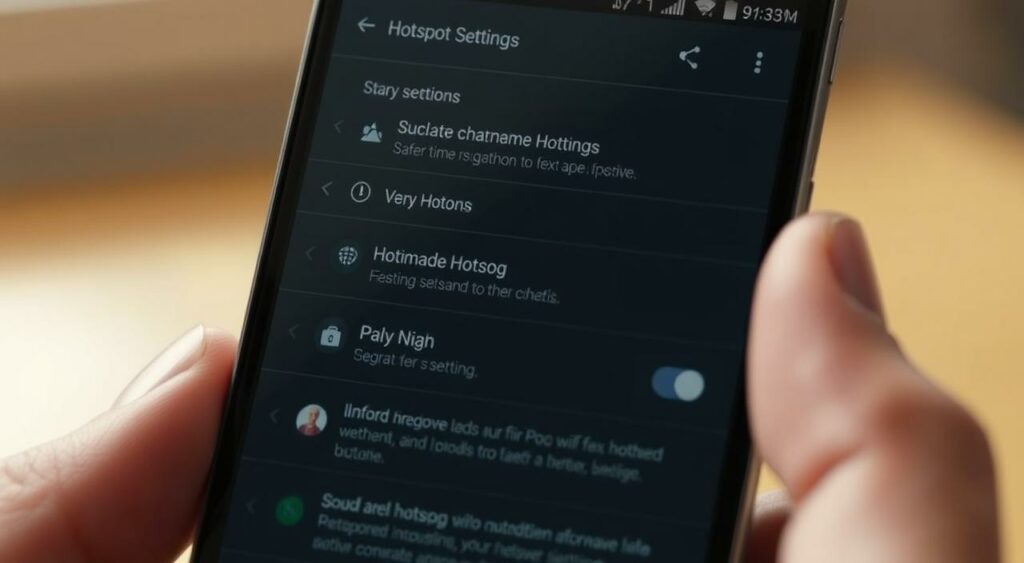
Creating a hotspot on Android devices is a simple task that requires a few taps. You can share your cellular data with other devices, making it a convenient feature when you’re on the go.
Finding Hotspot Settings on Different Android Phones
The process of finding hotspot settings may vary slightly depending on the Android device you’re using. Generally, you can find these settings under the “Connections” or “Wireless & networks” section in your device’s settings. You may need to tap on “Advanced” or “More” to access the hotspot options.
Setting Up Wi-Fi, Bluetooth, and USB Tethering
Android devices allow you to share your internet connection via Wi-Fi, Bluetooth, or USB. To set up Wi-Fi tethering, go to your hotspot settings and select “Wi-Fi” as your tethering method. For Bluetooth or USB tethering, you’ll need to pair your device with the device you want to share the internet with or connect it via USB.
Using Instant Hotspot with Google Accounts
Google’s Instant Hotspot feature enables seamless connections between devices signed into the same Google account. This feature is available on Android 11 and newer devices, with enhanced functionality on Android 14+. To activate it, enable cross-device services and internet sharing in your Google settings.
Smart Strategies to Minimize Data Usage While Using Hotspot iPhone Android
Minimizing data usage while using your iPhone or Android as a hotspot is achievable with the right techniques. When you share a Personal Hotspot from your iPhone, it uses cellular data for the internet connection. Understanding how to manage this data is crucial for avoiding unexpected data depletion.
Monitoring Your Data Consumption
To monitor your cellular data network usage, navigate to Settings > Cellular. This will provide you with a detailed breakdown of your data consumption, helping you identify which apps and devices are using the most data.
Setting Data Limits and Alerts
Setting data limits and alerts can help prevent excessive data usage. Most smartphones allow you to set a data warning threshold. When you near this limit, you’ll receive an alert, enabling you to adjust your access to data-intensive services.
Optimizing Connected Devices for Lower Data Usage
Connected devices can significantly impact your data usage. Optimizing these devices by limiting background data usage or restricting certain activities can help conserve data. For instance, you can configure devices to only update when connected to Wi-Fi.
Using Data-Saving Browser Options
Using data-saving browser options is another effective strategy. Many popular browsers, such as Chrome, Safari, Firefox, and Edge, offer data-saving modes. These modes work by compressing web pages before they’re downloaded to your device, reducing data consumption. Enabling these features can be done through the browser’s settings menu.
By implementing these strategies, you can enjoy the convenience of using your smartphone as a hotspot while keeping your data usage in check.
Troubleshooting Common Hotspot Issues
Troubleshooting your phone’s hotspot can resolve many of the issues that affect its performance. Whether you’re experiencing connection problems, slow speeds, or battery drain, understanding the cause is the first step to finding a solution.
Connection Problems and Solutions
Connection issues with your hotspot can often be resolved by checking your settings and ensuring your wi-fi is enabled. Restarting your device can also help. If you’re still having trouble, check that your password is correct and that you’re using the correct name for your hotspot.
- Restart your device to refresh the connection.
- Check that your cellular data is enabled.
- Ensure you’re using the correct password for your hotspot.
Dealing with Slow Speeds
Slow speeds can be frustrating when using your hotspot. To improve speeds, try reducing the number of devices connected or switching to a less congested network band if your device supports it. You can also check for data-intensive apps running in the background.
Battery Drain Concerns
Using your phone as a hotspot can quickly drain its battery due to the constant access to cellular data and maintaining wi-fi transmission. To mitigate this, keep your phone plugged into a power source when possible. Consider investing in a portable charger or battery case for extended use.
By understanding these common issues and implementing these solutions, you can enjoy a more reliable and efficient hotspot experience.
Alternative Options When Your Phone Hotspot Isn’t Enough
When your phone’s hotspot falls short, consider these other options for staying connected. If you’re a heavy user, a dedicated mobile hotspot device might be more suitable, offering better battery life and support for more devices. You can also turn your laptop into a Wi-Fi hotspot when connected to ethernet or another internet source.
Public Wi-Fi networks are another alternative, but be sure to use a VPN for secure connections. Some carriers offer specific hotspot plans and devices that might provide better value.
Compare the costs of adding hotspot data to your phone plan versus getting a dedicated device with its own data plan. Community internet options like libraries and community centers can also be a useful fallback.
FAQ
How do I set up a personal hotspot on my device?
To set up a personal hotspot, go to your device’s settings, look for the “Personal Hotspot” or “Tethering” option, and follow the prompts to enable it. You may need to enter a password and choose the connection method, such as Wi-Fi or USB.
Can I use my phone’s hotspot feature with multiple devices at once?
Yes, you can usually connect multiple devices to your phone’s hotspot, but the exact number may depend on your carrier’s policies and your device’s capabilities. Check your device’s documentation or contact your carrier for more information.
How can I minimize data usage while using my phone as a hotspot?
To minimize data usage, monitor your data consumption regularly, set data limits and alerts, optimize connected devices for lower data usage, and use data-saving browser options. You can also consider using Wi-Fi networks whenever possible.
What should I do if my phone’s hotspot isn’t working properly?
If your phone’s hotspot isn’t working, try restarting your device, checking your carrier’s coverage, and ensuring that your hotspot settings are configured correctly. You may also need to contact your carrier for assistance or check for software updates.
Can I use my phone’s hotspot feature while traveling abroad?
Using your phone’s hotspot while traveling abroad may incur additional charges or be subject to your carrier’s international data roaming policies. Check with your carrier before traveling to understand the costs and any limitations.
How do I secure my phone’s hotspot connection?
To secure your phone’s hotspot connection, set a strong password, use WPA2 encryption if available, and limit the number of devices that can connect. You should also keep your device’s software up to date to ensure you have the latest security patches.