As we continue to rely more heavily on wireless connectivity, the need for faster and more reliable home networks has never been more pressing. The latest advancement in wireless technology, Wi-Fi6E, promises to revolutionize the way we experience the internet at home by harnessing the power of the 6 GHz frequency band.
By upgrading to Wi-Fi6E, you can expect a significant leap forward in wireless performance, making it an exciting development that occurs only once every few years. This cutting-edge technology is particularly beneficial for power users and tech enthusiasts looking to maximize their network’s potential.
A proper setup will unlock the full benefits of Wi-Fi6E, including faster data transfer rates and reduced congestion. In this article, we’ll guide you through the step-by-step process of setting up Wi-Fi6E in your home, ensuring you can enjoy a seamless and high-performance network experience.
Understanding Wi-Fi 6E Technology
Wi-Fi 6E represents a significant leap forward in wireless technology, leveraging the 6 GHz frequency band for enhanced performance. This advancement is built upon the foundation of Wi-Fi 6, adding the crucial 6 GHz spectrum to provide a more robust network experience.
The Unique Attributes of the 6 GHz Band
The 6 GHz frequency band differs significantly from the traditional 2.4 GHz and 5 GHz bands used in previous wifi generations. It offers a much wider bandwidth, allowing for more content to be transmitted simultaneously without interference.
Advantages Over Standard Wi-Fi 6
Wi-Fi 6E builds upon the technical specifications of Wi-Fi 6, incorporating the 6 GHz band to deliver reduced latency and increased throughput. This makes it a premium product in the networking space, particularly beneficial for specific use cases that require high-bandwidth applications.
Over the years, Wi-Fi standards have evolved significantly, with Wi-Fi 6E being a notable milestone. Users can expect a more reliable connection, especially in environments with multiple devices connected to the same router. This enhances the overall wifi experience, making it more suitable for demanding tasks.
Essential Hardware for Wi-Fi 6E Setup
The journey to unlocking the 6 GHz fast lane begins with choosing the right hardware for your Wi-Fi6E setup. To ensure a successful implementation, you’ll need to focus on two primary components: a Wi-Fi6E compatible router and devices that can support the 6 GHz band.
Wi-Fi6E Compatible Routers
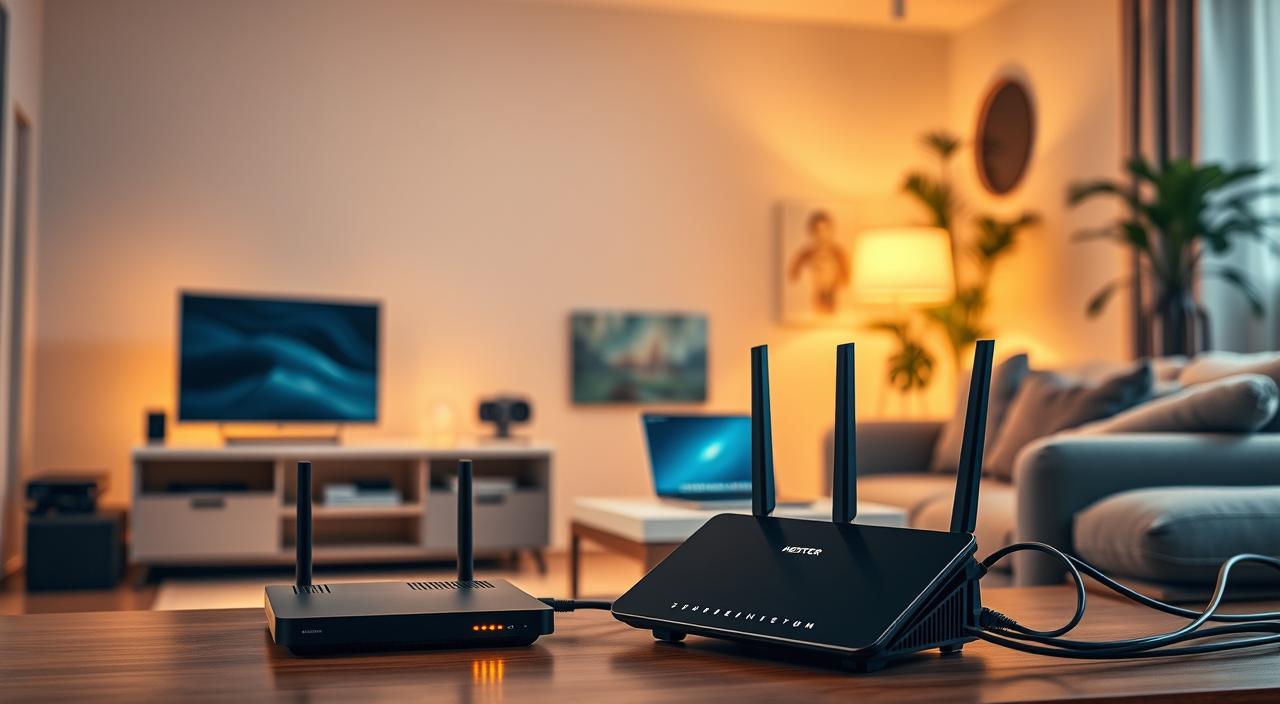
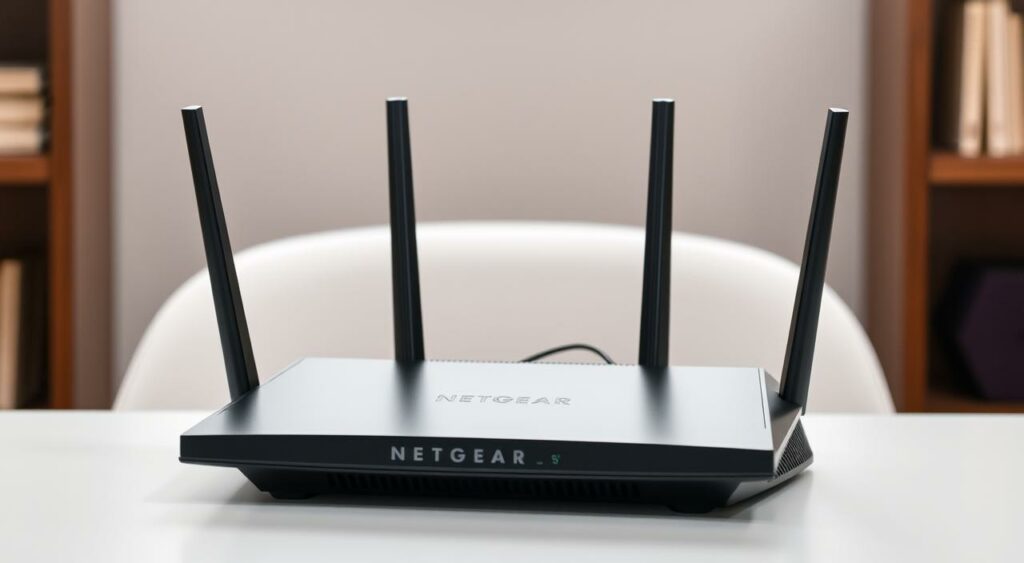
When selecting a Wi-Fi6E router, look for devices with robust processor specifications, advanced antenna configurations, and multiple port options. These features will enhance your network’s performance and capacity.
Device Compatibility Requirements
Device compatibility is crucial for a seamless Wi-Fi6E experience. Your devices must support the 6 GHz band to take full advantage of Wi-Fi6E.
Windows 11 Necessity
For Windows PCs, Windows 11 is necessary for native 6 GHz support. Windows 10 lacks this capability without complex workarounds, making an upgrade essential for Wi-Fi6E compatibility.
Mobile Device Support
The current landscape of mobile device support for Wi-Fi6E is expanding, with many recent smartphones and tablets capable of utilizing the 6 GHz band. Check your device specifications to confirm compatibility.
Router manufacturers have been developing Wi-Fi6E products over recent years, enhancing compatibility and future-proofing your network. The Wi-Fi6E community has also contributed significantly to troubleshooting and optimization techniques, making it easier to get the most out of your setup.
Complete Wi-Fi 6E Setup Process
To get started with your Wi-Fi 6E network, you’ll need to install a compatible router and configure your network settings. The setup process involves several key steps, including router installation, network configuration, and device optimization.
Installing Your Wi-Fi 6E Router
When installing your Wi-Fi 6E router, consider the optimal placement for 6 GHz signal propagation. Place your router in a central location, away from physical obstructions and interference sources.
Google Fiber Configuration
For Google Fiber users, the setup process involves configuring your network settings using the Google Wifi app. Ensure that your router is compatible with Google Fiber and follow the in-app instructions for initial setup.

Enabling Wi-Fi 6E on Windows PC
To enable Wi-Fi 6E on your Windows PC, navigate to Settings > Network & Internet, and click on the Properties button for your connected Wi-Fi network. Check the Description field to confirm Wi-Fi 6E support.
Checking Wi-Fi 6E Support in Settings
Verify that your Wi-Fi network is configured for 6 GHz operation by checking the Description field in the Network & Internet settings.
Activating 6 GHz Band in Device Manager
To activate the 6 GHz band, press the Windows + X key, select Device Manager, and navigate to Network adapters. Expand the Wi-Fi card option, click on the Advanced tab, and select the Ultra High Band (6GHz) option. Enable the 6 GHz band and click OK.
Getting the Most from Your Wi-Fi 6E Network
Now that you’ve set up your Wi-Fi 6E network, let’s explore how to maximize its potential. To get the most out of your Wi-Fi 6E, consider the ideal placement of your router and devices to minimize interference from other devices in your home.
Utilize your Wi-Fi router app to monitor network performance and identify potential bottlenecks. You can also prioritize certain types of content and applications to take full advantage of the increased bandwidth. Additionally, setting up a mesh network can ensure consistent coverage throughout your home.
As you look to the years ahead, your investment in Wi-Fi 6E positions you well for future advancements. Join online community forums to share experiences and learn new things about optimizing your network. By doing so, you’ll be able to enjoy a seamless and high-performance network for all your devices and products.
FAQ
What are the benefits of using a mesh network with my Wi-Fi6E router?
A mesh network can help extend the coverage of your Wi-Fi6E network, ensuring a strong and reliable connection throughout your home. This is particularly useful for larger homes or homes with multiple floors.
How do I know if my device is compatible with Wi-Fi6E?
To check if your device is Wi-Fi6E compatible, look for the Wi-Fi6E certification logo or check the device’s specifications. Most modern devices, including those from major brands like Google and Apple, support Wi-Fi6E.
What is the difference between Wi-Fi6 and Wi-Fi6E?
Wi-Fi6E is an extension of Wi-Fi6, operating on the 6 GHz frequency band. This band offers a cleaner and less congested environment, resulting in faster data transfer rates and lower latency.
How do I configure my Google Wi-Fi app for Wi-Fi6E?
To configure your Google Wi-Fi app for Wi-Fi6E, ensure your router is updated to the latest software. Then, follow the in-app instructions to enable Wi-Fi6E. The app will guide you through the process, making it easy to get started.
What should I do if I encounter an error during the Wi-Fi6E setup process?
If you encounter an error during setup, try restarting your router and device. If the issue persists, check for firmware updates or contact the manufacturer’s support for further assistance.
Can I use my existing Wi-Fi router with Wi-Fi6E?
To take full advantage of Wi-Fi6E, you’ll need a Wi-Fi6E compatible router. While some Wi-Fi6 routers may be upgradeable, it’s generally recommended to purchase a dedicated Wi-Fi6E router for optimal performance.
How does Wi-Fi6E improve my home network?
Wi-Fi6E improves your home network by providing a faster and more reliable connection. The 6 GHz band reduces congestion, allowing for smoother streaming, online gaming, and other bandwidth-intensive activities.