Are you tired of buffering videos and lagging online connections, even with a fast internet plan? You’re not alone. Many struggle with subpar Wi-Fi performance, despite having adequate service. The issue often lies not with the service provider, but with the router and network setup at home.
This comprehensive guide will walk you through simple, professional techniques to boost your network performance. By applying these tips, you can enjoy a stronger, more reliable connection throughout your home without needing expensive new equipment.
Discover how to identify and fix common Wi-Fi issues, and learn how to get the most out of your existing router and internet setup.
Why Your Home Wi-Fi Needs a Professional Tune-Up
Most homeowners don’t realize their Wi-Fi network is not performing at its best. Wi-Fi router installation has become easier, but optimal performance requires more than just the standard setup.
Common Wi-Fi Problems Most Homeowners Face
Homeowners often experience frustrating Wi-Fi issues, including dead zones, slow speeds, and intermittent connections. These problems can stem from improper router placement, outdated equipment, or signal interference. Common issues include buffering during streaming and devices randomly disconnecting from the network.
The Difference Between Basic Setup and Optimal Performance
A basic setup ensures your Wi-Fi is working, but optimal performance is about consistent speed and reliable connections throughout your home. Professional optimization can deliver up to 300% better speeds to your devices. A properly tuned wifi network ensures that all your devices can operate smoothly.
| Feature | Basic Setup | Professional Tune-Up |
|---|---|---|
| Speed | Standard | Up to 300% faster |
| Connection Reliability | Variable | Consistent |
| Device Support | Limited | Optimized for multiple devices |
Strategic Router Placement: The Foundation of Good Wi-Fi
A well-placed router is the foundation of a fast and reliable home Wi-Fi network. The position of your router significantly affects the strength and coverage of your Wi-Fi signal throughout your home.
Finding the Optimal Central Location
To maximize Wi-Fi coverage, it’s essential to place your router in a central location. This ensures that the signal is distributed evenly throughout your home, reducing dead zones and areas with weak signals. Professional installers often prioritize this central placement to guarantee that all areas of your home receive a strong and stable signal.
Elevation Matters: Why Height Improves Coverage
Elevating your router can dramatically improve Wi-Fi coverage. Since Wi-Fi signals travel downward at an angle, mounting your router on a wall or placing it on a high shelf can help ensure a stronger signal reaches all areas of your home. This simple adjustment can make a significant difference in the overall performance of your Wi-Fi network.
Avoiding Interference from Walls and Objects
Physical barriers such as walls, metal objects, and large appliances can interfere with your Wi-Fi signal. To minimize interference, it’s crucial to place your router away from such obstructions. Additionally, keeping your router at least 3-5 feet away from other electronic devices can help reduce signal interference and improve overall network performance.
| Router Placement Tip | Benefit |
|---|---|
| Central Location | Even signal distribution |
| Elevated Position | Improved coverage |
| Avoiding Obstructions | Reduced signal interference |
By strategically placing your router and avoiding common obstructions, you can significantly enhance your home Wi-Fi network’s performance and coverage.
Wired Connections: When Ethernet Cables Outperform Wi-Fi
You don’t need Wi-Fi for every device; sometimes, a wired Ethernet connection is the way to go for better stability and speed. While wireless connections offer convenience, there are scenarios where the reliability and speed of a wired connection are preferable.
Identifying Devices That Benefit Most from Wired Connections
Certain devices benefit significantly from a wired Ethernet connection. These include gaming consoles, which require low latency for an optimal gaming experience, smart TVs for buffer-free 4K streaming, desktop computers that need stable and fast connections, and network storage devices. Using Ethernet cables for these devices can enhance your overall network performance.
| Device | Benefit of Wired Connection |
|---|---|
| Gaming Consoles | Reduced lag and improved gaming experience |
| Smart TVs | Buffer-free 4K streaming |
| Desktop Computers | Stable and fast connection |
| Network Storage Devices | Fast data transfer |
Simple Cable Management Solutions for a Tidy Setup
Managing Ethernet cables effectively is crucial for maintaining a tidy and organized setup. Simple solutions include using cable clips, raceways, and cord covers to keep cables organized and visually unobtrusive.
For longer cable runs, consider using flat Ethernet cables that can be discreetly run under carpets or along baseboards. This not only improves the aesthetics of your setup but also reduces the risk of cable damage.
By implementing these solutions, you can enjoy the benefits of wired connections while maintaining a clutter-free environment. Modern routers typically offer multiple Ethernet ports, allowing you to connect several devices via Ethernet without degrading your network’s performance.
Mastering Wi-Fi Channels and Bands
Mastering Wi-Fi channels and bands can significantly enhance your network’s performance. Your Wi-Fi signal is divided into channels, and your router uses a particular Wi-Fi channel to communicate with devices around your home. Neighbors with routers using the same Wi-Fi channel can cause congestion, but switching channels can solve this problem and improve Wi-Fi speeds.
Understanding the Difference Between 2.4GHz, 5GHz, and 6GHz
Professional network technicians understand that Wi-Fi operates on different frequency bands (2.4GHz, 5GHz, and the newer 6GHz), each with distinct characteristics and optimal use cases. The 2.4GHz band offers greater range but slower speeds and is more prone to interference from household devices. The 5GHz band provides faster speeds but has a shorter range and less wall penetration, making it ideal for devices in the same room as the router.
The newest 6GHz band (available on Wi-Fi 6E and Wi-Fi 7 routers) offers the fastest speeds with the least congestion but the shortest range. Understanding these differences is crucial for optimizing your network.
How to Select the Least Congested Channel
Each frequency band is divided into multiple channels. Professionals know how to select the least congested channels to minimize interference from neighboring networks. For 2.4GHz networks, channels 1, 6, and 11 are typically recommended as they don’t overlap with each other.
- Most modern routers have automatic channel selection, but manual selection can yield better results.
- Professional installers use channel analyzer tools to identify the least congested channels in your specific location.
- Understanding and properly configuring channels and bands can dramatically improve network performance without any hardware upgrades.
By mastering Wi-Fi channels and bands, you can significantly improve your network’s efficiency and performance.
How to Optimize Home WiFi with Router Settings
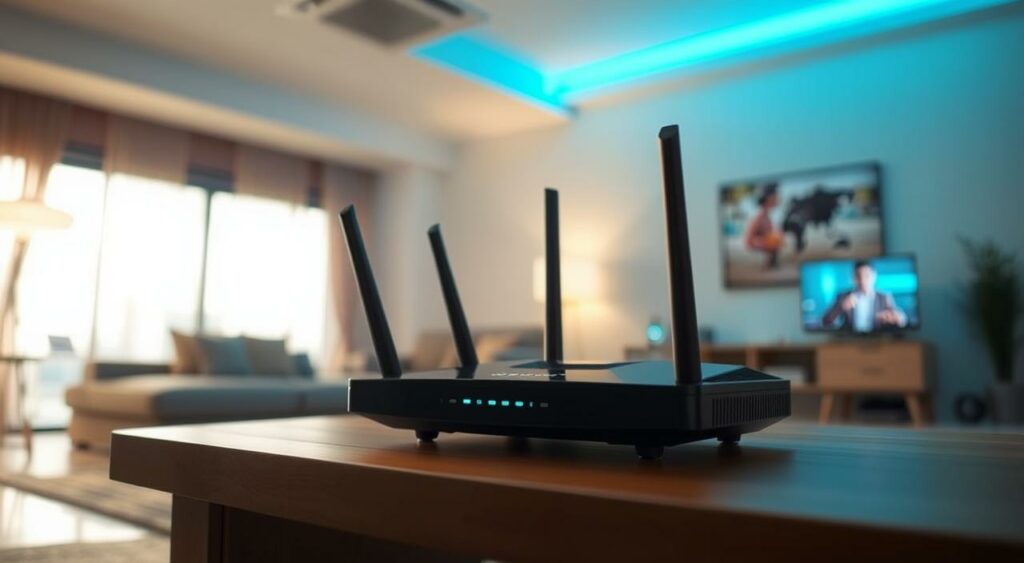
Enhancing your home WiFi performance starts with adjusting your router settings. Professional network technicians always customize these settings beyond the default configuration to maximize performance and security.
Setting Up Quality of Service (QoS) for Priority Devices
One of the most useful features for online entertainment is Quality of Service (QoS). It allows you to prioritize the upstream and downstream traffic on your network, providing a performance boost for your favorite streaming service or online game. To set up QoS, navigate to your router’s configuration page, find the QoS tab, and turn it on. You can then prioritize certain services, such as online games or video streaming.
Configuring Guest Networks for Better Security
Configuring a guest network creates a separate access point for visitors, keeping them isolated from your main network and personal devices. Professionals configure guest networks with time limits and bandwidth restrictions to prevent overuse while maintaining security. This setup ensures that your primary network remains secure and performs optimally.
Other advanced router settings that can be adjusted include beacon interval, transmit power, and MIMO configuration. Regularly applying firmware updates is also crucial as they often contain performance improvements and security patches. By optimizing these settings, you can significantly enhance your home WiFi experience.
When to Upgrade Your Router (and What to Look For)

If you’re experiencing persistent Wi-Fi issues, it might be time to consider upgrading your router. Professional network installers recognize when hardware limitations are causing performance issues that can’t be solved through optimization alone.
Signs Your Current Router Is Holding You Back
Clear signs that your router needs upgrading include: it’s more than 3-5 years old, it doesn’t support current Wi-Fi standards, it overheats frequently, or you’ve expanded your connected device collection significantly. If you identify with any of these scenarios, it’s likely time to consider a new router.
Wi-Fi6 vs. Wi-Fi6E vs. Wi-Fi7: Which Is Right for You
Wi-Fi technology has evolved rapidly. Wi-Fi6 offers better performance with multiple devices, Wi-Fi6E adds the uncongested 6GHz band, and Wi-Fi7 provides even faster speeds and lower latency. Understanding these differences is crucial in selecting the right technology for your home network.
Mesh Networks: The Solution for Larger Homes
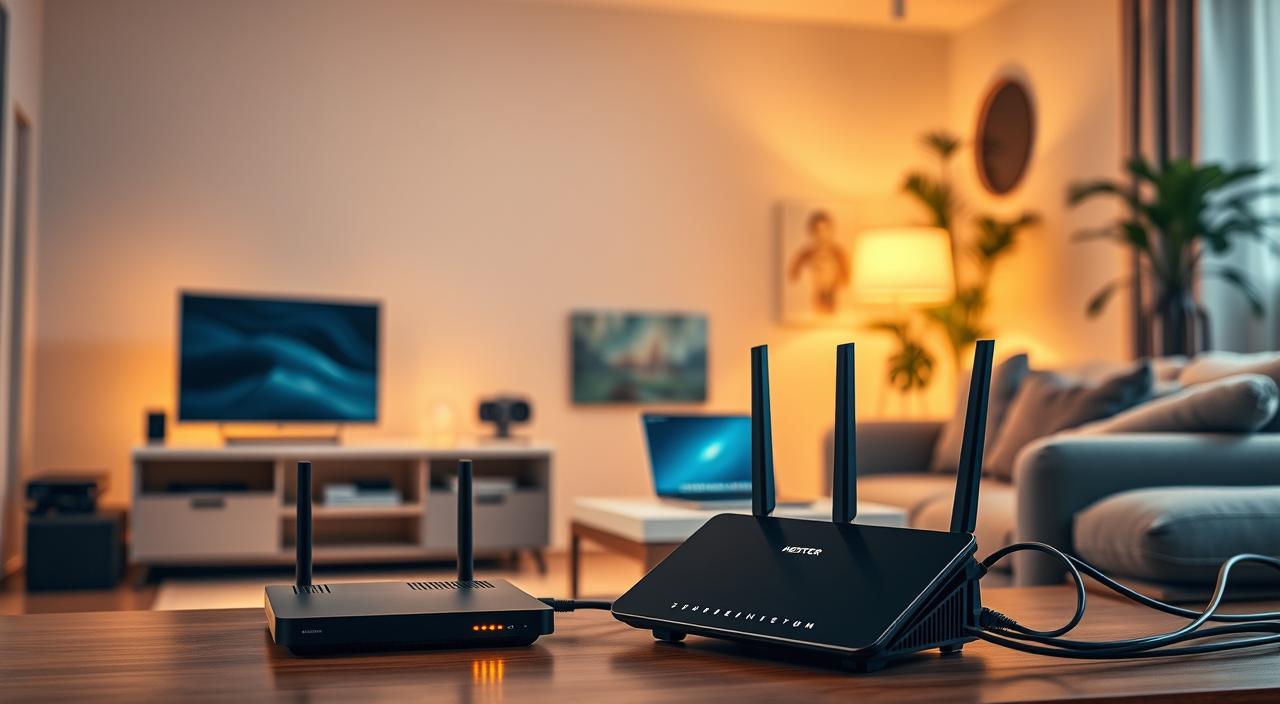
For homes larger than 2,000 square feet or with multiple floors, professionals typically recommend mesh network systems rather than single routers. Mesh networks use multiple access points that work together as a single network, eliminating dead zones and providing consistent coverage throughout large spaces.
When selecting a new router, consider not just speed ratings but also processor capabilities, RAM, antenna design, and available features. For homes with many smart devices, look for routers with higher device capacity ratings and dedicated IoT management features. Router placement remains important even with newer technology – upgrading your router won’t fully solve problems caused by poor placement.
Securing Your Network Like a Professional
With the rise of smart home devices, securing your network has never been more important. A secure home network is not just about protecting your personal data; it’s also about ensuring that your internet connection isn’t being used by others, which can significantly slow down your online experience.
Creating Strong, Unique Passwords
One of the fundamental steps in securing your network is creating a strong and unique password for your Wi-Fi. Professionals recommend using a password that is at least 12 characters long and includes a mix of uppercase and lowercase letters, numbers, and special characters.
This makes it much harder for hackers to gain unauthorized access to your network.
MAC Address Filtering for Enhanced Security
Beyond password protection, another layer of security is MAC address filtering. This feature allows you to specify which devices can connect to your network by creating a list of approved MAC addresses. Since each network device has a unique MAC address, this adds a significant barrier against unwanted access.
To further enhance your network’s security, consider the following best practices:
- Use WPA3 encryption if your router supports it, as it offers better security than older protocols.
- Change the default router administrator password to prevent easy access by potential hackers.
- Regularly update your router’s firmware to patch known security vulnerabilities.
- Disable remote management features unless they are necessary, as they can introduce security risks.
- Consider separating IoT devices onto a guest network to prevent them from compromising your main network.
Here’s a comparison of different Wi-Fi security protocols:
| Protocol | Security Level | Speed Impact |
|---|---|---|
| WEP | Low | Minimal |
| WPA2 | Medium | Moderate |
| WPA3 | High | Minimal |
Managing Connected Devices for Better Performance
With multiple devices connecting to your home Wi-Fi, managing them effectively is key to optimal performance. Having dozens of devices tapping into your Wi-Fi at once can be problematic. To mitigate this, plug devices that don’t require Wi-Fi into Ethernet, and unplug any unnecessary connected devices.
Good routers offer controls to prioritize particular devices or services, ensuring that critical applications remain uninterrupted. For instance, you can prioritize your gaming console to prevent lag during online gaming sessions while others stream videos.
Identifying and Limiting Bandwidth-Hungry Devices
Professional network managers regularly audit connected devices to identify those consuming excessive bandwidth. Common culprits include Smart TVs, security cameras, gaming consoles, and computers running automatic updates. Most modern routers allow you to view all connected devices and their bandwidth usage through the administration panel.
- Identify devices consuming the most bandwidth.
- Set bandwidth limits for non-essential devices.
- Prioritize critical devices or applications.
Setting Up Parental Controls and Time Limits
Parental controls can be configured to limit not just content but also usage times and bandwidth allocation for children’s devices. Setting up device schedules can automatically disable certain devices during specific hours, improving network performance during high-usage periods.
- Configure parental controls to limit device usage.
- Set schedules to disable devices during certain hours.
- Create device groups with different priority levels.
Troubleshooting PC-Specific Wi-Fi Issues
PC-specific Wi-Fi issues can be frustrating, especially when other devices on the network are performing well. If you’re experiencing slow internet on your computer while other devices are fine, there are several potential causes and solutions to explore.
Checking for Background Programs Consuming Bandwidth
One common cause of slow internet on a computer is background programs consuming bandwidth. Certain applications, such as automatic updates, cloud backup services, and synchronization tools, can use significant bandwidth without your knowledge.
To identify these programs, you can use the Task Manager on Windows or Activity Monitor on Mac. These tools allow you to see which programs are using your internet connection and how much bandwidth they’re consuming.
- Press Ctrl+Shift+Esc to open Task Manager on Windows or use Spotlight to search for Activity Monitor on Mac.
- Look for programs that are using a significant amount of bandwidth.
- Adjust the settings of these programs to limit their bandwidth usage or schedule their activities during off-peak hours.
When to Upgrade Your Computer’s Wi-Fi Card
If your computer’s Wi-Fi performance is consistently poor, it might be time to consider upgrading your Wi-Fi card. Outdated network drivers or an old Wi-Fi card can significantly impact your internet speed.
| Upgrade Option | Description | Benefits |
|---|---|---|
| USB Wi-Fi Adapters | External devices that plug into a USB port | Easy to install, affordable |
| PCIe Wi-Fi Cards | Internal cards that provide better performance | Improved speed, often include external antennas |
Upgrading your computer’s Wi-Fi capabilities can significantly improve your internet experience. Consider whether a USB Wi-Fi adapter or a PCIe Wi-Fi card is the best solution for your needs.
Alternative Solutions for Persistent Dead Zones
If you’ve optimized your router’s placement but still experience dead zones, it’s time to explore alternative solutions. Despite careful planning, some homes continue to suffer from poor Wi-Fi coverage due to their layout or construction.
Using Powerline Adapters to Extend Your Network
Powerline adapters offer a viable solution by utilizing your home’s electrical wiring to extend your network. These adapters, available from manufacturers like Netgear and TP-Link, allow you to create a wired or wireless connection in areas where Wi-Fi signals are weak. This is particularly useful in older homes with thick walls or metal construction that can block Wi-Fi signals.
When to Consider Professional Installation
In some cases, professional installation may be necessary to address persistent dead zones. This is especially true for complex home layouts or when aesthetic concerns are paramount. Professionals can install ethernet cables through walls or ceilings and strategically place mesh nodes to ensure comprehensive coverage. They also use specialized tools to measure signal strength and identify the exact causes of dead zones, providing a tailored solution for your home network.
When to Call Your Internet Service Provider
When you’ve exhausted all options and your Wi-Fi remains problematic, reaching out to your ISP is the next logical step. If you’re consistently experiencing speeds well below what you’re paying for, or if you’re encountering frequent connection drops, it’s likely that the issue extends beyond your home network.
Before calling your ISP, gather evidence by running speed tests at different times of day and from different devices. This will help demonstrate the problem. Additionally, document your troubleshooting steps to show that you’ve addressed potential issues within your home network.
Your ISP can run remote diagnostics on your connection and modem to identify problems that aren’t visible from your end. They can also check for signal degradation, line damage, or outdated equipment that might be limiting your connection. Some ISPs offer advanced routers or mesh systems as part of their service packages, which may be worth exploring if your equipment is outdated.
- Professional network technicians can pinpoint overlooked issues that are affecting your Wi-Fi speed.
- ISPs can identify problems that aren’t visible from your end, such as signal degradation or line damage.
- Some ISPs offer advanced routers or mesh systems that may improve your internet service.
When speaking with your ISP, ask specifically about your signal levels and connection stability rather than just speed issues. This will help you get a more comprehensive understanding of your internet connection.
FAQ
What is the best way to improve my Wi-Fi signal strength?
To improve your Wi-Fi signal, try moving your router to a central location, switching to a less congested channel, and using Quality of Service (QoS) settings to prioritize devices.
How do I know if I need to upgrade my router?
If you’re experiencing frequent dropped connections, slow speeds, or poor coverage, it may be time to upgrade your router. Look for signs like outdated technology, such as Wi-Fi 5 or older, and consider upgrading to Wi-Fi 6 or Wi-Fi 6E for better performance.
What is the difference between 2.4GHz, 5GHz, and 6GHz Wi-Fi bands?
The 2.4GHz band offers longer range but slower speeds, while the 5GHz band provides faster speeds but shorter range. The 6GHz band is a newer, less congested band that offers even faster speeds and lower latency.
How do I secure my Wi-Fi network?
To secure your network, create strong, unique passwords, enable MAC address filtering, and set up a guest network to isolate visitors from your main network.
What are dead zones, and how can I eliminate them?
Dead zones are areas with poor or no Wi-Fi coverage. To eliminate them, try using a mesh network system, powerline adapters, or strategically placing range extenders to boost your signal.
Can I use Ethernet cables instead of Wi-Fi for some devices?
Yes, using Ethernet cables can provide a faster, more stable connection for devices like gaming consoles, smart TVs, and desktop computers. Identify devices that benefit from wired connections and use simple cable management solutions to keep your setup tidy.
How do I manage bandwidth-hungry devices on my network?
To manage bandwidth-hungry devices, identify devices consuming the most bandwidth, set up Quality of Service (QoS) settings to prioritize devices, and consider setting up parental controls and time limits to limit usage.
When should I consider professional installation for my Wi-Fi network?
If you’ve tried troubleshooting and still experience persistent dead zones or poor coverage, consider hiring a professional to assess and optimize your network for optimal performance.