As cyber threats continue to evolve, your network security is more crucial than ever. The current wireless security protocols may not be sufficient to protect your data. With the increasing number of devices connected to your wireless network, the risk of a security breach grows.
Upgrading to a more robust security suite is essential. The latest advancements in wireless security offer enhanced protection without disrupting your existing network operations. In this article, we will explore how you can strengthen your security and ensure a seamless transition to the latest wireless security protocols.
Discover the benefits of upgrading and how it can safeguard your network against common cyber threats.
Understanding WPA3: The Next Generation of Wi-Fi Security
With the ever-evolving landscape of cyber threats, WPA3 emerges as a critical upgrade for wireless networks. As you navigate the complexities of modern Wi-Fi security, understanding WPA3 is crucial for ensuring the integrity of your wireless connections.
What is WPA3 and Why It Matters
WPA3, or Wi-Fi Protected Access 3, is the latest security protocol designed to safeguard wireless networks. It represents a significant improvement over its predecessor, WPA2, by addressing known vulnerabilities and introducing new security features. The Wi-Fi Alliance, the organization behind the certification of Wi-Fi standards, developed WPA3 to provide a more robust security framework for wireless communications.
The importance of WPA3 lies in its ability to protect against sophisticated cyber threats. As wireless technology advances, so do the methods used by malicious actors to exploit network vulnerabilities. WPA3 is designed to stay ahead of these threats, ensuring that your wireless network remains secure.
Key Security Improvements Over WPA2
WPA3 introduces several key security improvements over WPA2. One of the most significant enhancements is the use of Simultaneous Authentication of Equals (SAE), which replaces the Pre-Shared Key (PSK) authentication method used in WPA2. SAE provides better protection against password guessing attacks and ensures that even if a password is weak, it will be more difficult for attackers to crack.
Another critical improvement is the implementation of Protected Management Frames (PMF), which encrypt management frames to prevent eavesdropping and tampering. This feature significantly enhances the overall security posture of wireless networks.
Wi-Fi Alliance Certification and Standards
The Wi-Fi Alliance plays a crucial role in the development and certification of WPA3 standards. To ensure interoperability and compliance with WPA3 specifications, vendors must undergo a certification process. This process involves rigorous testing to verify that devices meet the required security standards.
The Wi-Fi Alliance certification is essential for ensuring that devices from different manufacturers can work seamlessly together. By looking for Wi-Fi Alliance certification when purchasing new wireless equipment, you can be confident that your devices will be compatible and secure.
| WPA3 Certification Categories | Description |
|---|---|
| WPA3-Personal | Designed for home networks, providing robust security with SAE. |
| WPA3-Enterprise | Offers advanced security features for enterprise networks, including support for IEEE 802.1X authentication. |
| Enhanced Open | Provides encryption for open networks, protecting against eavesdropping. |
The Three Pillars of WPA3 Security
WPA3 security is built on three foundational pillars that work together to provide comprehensive protection for your wireless network. These pillars address different aspects of Wi-Fi security, ensuring that your network is robust against various types of threats.
WPA3-Personal: Beyond Pre-Shared Keys
WPA3-Personal introduces a significant improvement over its predecessor by using Simultaneous Authentication of Equals (SAE) instead of pre-shared keys (PSK). This enhancement provides better protection against password guessing attacks. With SAE, the authentication process is more secure, and the risk of offline dictionary attacks is mitigated. You can enjoy a more secure connection without the complexity of managing individual user credentials.
WPA3-Enterprise: Enhanced 802.1X Security
WPA3-Enterprise builds upon the 802.1X authentication framework, providing an even more secure environment for enterprise networks. It mandates the use of a robust authentication protocol and supports the latest encryption standards. This ensures that your enterprise network remains secure, even as new threats emerge. The enhanced security features of WPA3-Enterprise make it an ideal choice for organizations that require high levels of security.
Enhanced Open: Protection for Open Networks
Enhanced Open, also known as Opportunistic Wireless Encryption (OWE), is a feature of WPA3 that provides encryption for open networks without requiring user authentication.
This is particularly useful for public Wi-Fi networks and guest networks where users often connect without entering a password. OWE works by performing a Diffie-Hellman key exchange during the association process, resulting in a Pairwise Master Key (PMK) that is used for the 4-way handshake. This ensures that your data remains encrypted, even on open networks.
| Security Feature | Description | Benefit |
|---|---|---|
| WPA3-Personal | Uses SAE for secure authentication | Better protection against password guessing attacks |
| WPA3-Enterprise | Enhanced 802.1X authentication | High security for enterprise networks |
| Enhanced Open | Provides encryption for open networks | Protects data on public and guest networks |
By implementing these three pillars, WPA3 significantly enhances the security of your wireless network. Whether you’re using a personal network, an enterprise network, or providing public Wi-Fi, WPA3 has the features you need to keep your data secure.
Protected Management Frames: The Foundation of WPA3
WPA3’s Protected Management Frames provide a robust foundation for secure Wi-Fi communications. Protected Management Frames (PMF) are a crucial security feature that protects the integrity of Wi-Fi management frames, preventing attackers from intercepting or manipulating them.
How PMF Prevents Common Wi-Fi Attacks
PMF prevents common Wi-Fi attacks by ensuring that management frames are authentic and have not been tampered with. This is achieved through the use of cryptographic protection, which verifies that the frames come from a legitimate source. By doing so, PMF prevents attacks such as deauthentication and disassociation attacks, which can be used to disrupt network connectivity or facilitate man-in-the-middle attacks.
With PMF, you can be confident that your Wi-Fi network is protected against these types of attacks, ensuring the continuity of your wireless communications. The implementation of PMF is a significant step forward in Wi-Fi security, providing a more robust and reliable connection.
Integrity Protection vs. Encryption in PMF
While both integrity protection and encryption are used in PMF, they serve different purposes. Integrity protection ensures that management frames are authentic and have not been altered during transmission. Most management frames are protected with integrity checks rather than full encryption, allowing for the verification of legitimate sources without necessarily hiding their contents.
However, certain management frames are encrypted to protect sensitive information. This selective approach balances security with operational visibility, ensuring that network monitoring and troubleshooting tools can still function effectively. By distinguishing between integrity protection and encryption, PMF provides a nuanced approach to Wi-Fi security, addressing both the need for confidentiality and the need for network visibility.
As you implement WPA3 with PMF, you can rely on the integrity protection and selective encryption to safeguard your Wi-Fi network. This not only enhances your network’s security but also ensures that it remains manageable and maintainable.
SAE vs. PSK: Understanding the Technical Differences
Understanding the technical differences between SAE and PSK is crucial for appreciating the security upgrades in WPA3. The shift from Pre-Shared Key (PSK) to Simultaneous Authentication of Equals (SAE) represents a significant enhancement in Wi-Fi security.
Simultaneous Authentication of Equals Explained
SAE is a more secure authentication protocol than PSK, utilizing the Dragonfly handshake to authenticate devices. This process involves a cryptographic exchange that ensures both the client device and the network are authenticated simultaneously, hence the name Simultaneous Authentication of Equals.
The Dragonfly handshake is a key component of SAE, providing a secure method for devices to authenticate without exposing their passwords or passphrases. This handshake is resistant to offline dictionary attacks, significantly improving security.
Protection Against Offline Dictionary Attacks
One of the primary advantages of SAE over PSK is its protection against offline dictionary attacks. In WPA2, using PSK, an attacker could capture the handshake between a device and the network, then attempt to crack the password offline. SAE prevents this by not transmitting information that can be used in such attacks.
- SAE doesn’t allow attackers to capture useful data for offline cracking.
- The protocol ensures that even weak passwords are protected against brute-force attacks.
Unique Per-Device Encryption Keys
SAE generates unique encryption keys for each device on the network, even when they use the same password. This is achieved through the Dragonfly handshake, which seeds additional elements into the cryptographic function, ensuring each device has a distinct key.
Benefits of Unique Keys:
- Enhanced security: If one device is compromised, others remain secure.
- Forward secrecy: Previously captured traffic remains encrypted even if a key is later compromised.
In conclusion, SAE offers substantial security improvements over PSK, primarily through its resistance to offline dictionary attacks and the generation of unique per-device encryption keys.
These enhancements are critical for maintaining the security and integrity of Wi-Fi networks, especially in environments where multiple devices share network access.
Hardware and Software Requirements for WPA3 Migration
As you prepare to migrate to WPA3, understanding the hardware and software requirements is crucial for a smooth transition. WPA3 offers enhanced security features, but its implementation depends on the compatibility of your network devices.
Access Point Compatibility Checklist
To support WPA3, your access points must meet specific hardware and software requirements. First, check if your access points are WPA3-compatible. Most modern access points support WPA3, but older models may need upgrades or replacements.
Ensure that your access points can run the necessary firmware to support WPA3 features like Simultaneous Authentication of Equals (SAE) and Protected Management Frames (PMF).
- Verify that your access points support WPA3-Personal or WPA3-Enterprise, depending on your network configuration.
- Check for firmware updates that enable WPA3 features.
- Consider upgrading to newer access points if your current hardware is not compatible.
Client Device Support Considerations
Client devices, including laptops, smartphones, and IoT devices, must also support WPA3 to fully benefit from the new security protocol. Check the specifications of your client devices to ensure they are WPA3-compatible. For devices that don’t support WPA3, consider upgrading to newer models or using alternative security measures.
| Device Type | WPA3 Support | Action Required |
|---|---|---|
| Laptops | Check OS and Wi-Fi adapter support | Update drivers or OS if necessary |
| Smartphones | Check device specifications | Upgrade to WPA3-compatible models |
| IoT Devices | Check manufacturer specifications | Replace with WPA3-compatible devices |
Firmware Update Requirements
Firmware updates are critical for enabling WPA3 on your existing network infrastructure. Ensure that you update your access points and other network devices to the latest firmware versions. For WPA3-Personal SAE, a minimum software version of 17.7.1 is required. For WPA3-Enterprise and WPA3-Personal Transition disabled, version 17.7.1 is also necessary.
- Check the current firmware version on your devices.
- Identify the update path for different devices and manufacturers.
- Test firmware updates in a controlled environment before deploying them network-wide.
- Create a firmware update schedule to minimize network disruption.
By carefully assessing your hardware and software requirements, you can ensure a successful WPA3 migration and enhance your network’s security. Staying up-to-date with the latest firmware is crucial for maintaining the security of your network and protecting against potential threats.
Planning Your WPA3 Migration Strategy
A successful WPA3 migration requires a well-thought-out strategy to ensure a smooth transition. As organizations prepare to upgrade their wireless security, they must consider several key factors to facilitate a seamless migration to WPA3.
Assessing Your Current Network Environment
Before initiating the migration process, it’s essential to assess your current network environment. This involves evaluating your existing wireless infrastructure, including access points, client devices, and network configurations. Understanding your current setup will help identify potential challenges and opportunities for improvement during the migration to WPA3.
You should catalog all devices connected to your network, noting their capabilities and compatibility with WPA3. This step is crucial in determining which devices may require upgrades or replacements to support the new security standard.
Creating a Device Inventory and Compatibility Matrix
Creating a comprehensive device inventory and compatibility matrix is vital for a successful WPA3 migration. This involves listing all devices that connect to your network and assessing their compatibility with WPA3. The matrix should include details such as device type, model, current firmware, and WPA3 support status.
| Device Type | Model | Current Firmware | WPA3 Support |
|---|---|---|---|
| Access Point | AP-123 | 1.0.0 | Yes |
| Laptop | LAP-456 | 2.0.0 | No |
| Smartphone | SPH-789 | 3.0.0 | Yes |
Setting Realistic Migration Timelines
Setting realistic migration timelines is critical to ensure that the transition to WPA3 is accomplished without disrupting business operations. Factors to consider when establishing timelines include the size of your network, the complexity of your infrastructure, and the availability of resources for testing and implementation.
A phased migration approach can help minimize disruption by prioritizing high-security areas first. It’s also essential to align your WPA3 migration with other IT initiatives and refresh cycles to maximize efficiency.
Key Considerations for Migration Timelines:
- Firmware availability and compatibility
- Testing requirements and potential issues
- User training and support needs
- Contingency planning for potential rollback
By carefully planning your WPA3 migration strategy, you can ensure a secure and efficient transition to the new wireless security standard.
WPA3 Transition Mode: The Key to Seamless Migration
To ensure a seamless migration to WPA3, it’s essential to understand how Transition Mode works. Transition Mode allows devices that support WPA3 to coexist with older devices that only support WPA2, enabling a gradual upgrade process.
How Transition Mode Works
Transition Mode operates by allowing access points to broadcast both WPA2 and WPA3 capabilities simultaneously. This means that WPA2 devices can connect using their existing authentication method, while WPA3-capable devices can take advantage of the enhanced security features of WPA3. The access point manages both types of connections, ensuring that devices can communicate securely, regardless of their WPA version.
Benefits and Limitations
The primary benefit of Transition Mode is that it allows for a gradual migration to WPA3 without immediately rendering older devices obsolete. This is particularly useful in environments with a mix of old and new devices. However, it’s crucial to note that Transition Mode is not without its limitations. By allowing both WPA2 and WPA3 connections, there’s a potential risk that the overall security posture could be weakened if not managed properly.
Key Benefits:
- Gradual migration to WPA3
- Compatibility with both WPA2 and WPA3 devices
- Reduced need for immediate hardware upgrades
Key Limitations:
- Potential security risks if not managed correctly
- Complexity in managing mixed-mode networks
| Feature | WPA2 | WPA3 | Transition Mode |
|---|---|---|---|
| Security Level | Lower | Higher | Variable |
| Device Compatibility | Older Devices | Newer Devices | Both |
| Management Complexity | Lower | Higher | Higher |
When to Use Transition Mode vs. Pure WPA3
Transition Mode should be used when you have a mix of WPA2 and WPA3 devices and need to gradually migrate to WPA3. However, for maximum security, the recommended mode is to use only WPA3. You should evaluate your device ecosystem to determine if Transition Mode is necessary. For networks with a high-security requirement, such as corporate networks, pure WPA3 is recommended. For environments with a mix of devices, including IoT devices that may not support WPA3, Transition Mode can be a temporary solution.
It’s essential to view Transition Mode as a temporary state, with pure WPA3 as the end goal. As more devices become WPA3-capable, you should plan to transition to a pure WPA3 environment to maximize security benefits.
Configuring WPA3-Enterprise on Your Network
WPA3-Enterprise configuration is a vital process for organizations seeking to bolster their Wi-Fi security. This process involves several key steps that ensure your network is protected with the latest security protocols.
Step-by-Step Configuration Guide
To configure WPA3-Enterprise on your network, follow these steps:
1. Choose Configuration > Tags and Profiles > WLANs.
2. Click Add to create a new WLAN profile.
3. In the General tab, enter a Profile Name, and both the SSID and WLAN ID will be populated automatically.
4. Enable the Status and Broadcast SSID toggle buttons to begin broadcasting this WLAN on associated APs.
5. Navigate to the Security tab > Layer2 tab, and from the Layer2 Security Mode drop-down list, choose WPA3.
6. Confirm that the Protected Management Frames (PMF) is set to Required.
7. Check the WPA3 Policy, AES, and 802.1X-SHA256 check boxes, and unselect any other selected parameters.
8. Click the Security tab and then the AAA tab, and from the Authentication List drop-down list, choose the preconfigured RADIUS Server Authentication List.
9. Click Apply to Device to save and finish the WLAN creation process.
RADIUS Server Considerations
When configuring WPA3-Enterprise, it’s crucial to consider your RADIUS server settings. Ensure that your RADIUS server is configured to support WPA3-Enterprise authentication, including 802.1X-SHA256. This involves checking that your server is updated with the latest firmware and configured correctly to handle WPA3 authentication requests.
Key considerations include: ensuring compatibility with WPA3-Enterprise, configuring the correct authentication protocols, and testing the RADIUS server’s performance under load.
Testing and Verification
After configuring WPA3-Enterprise, thorough testing and verification are essential to ensure that your network is secure and functioning as expected.
Testing should include: verifying that Protected Management Frames are properly implemented, confirming that the correct authentication and key management protocols are being used, and monitoring authentication successes and failures.
Documenting test results is crucial for compliance and troubleshooting purposes.
Implementing WPA3-Personal with SAE
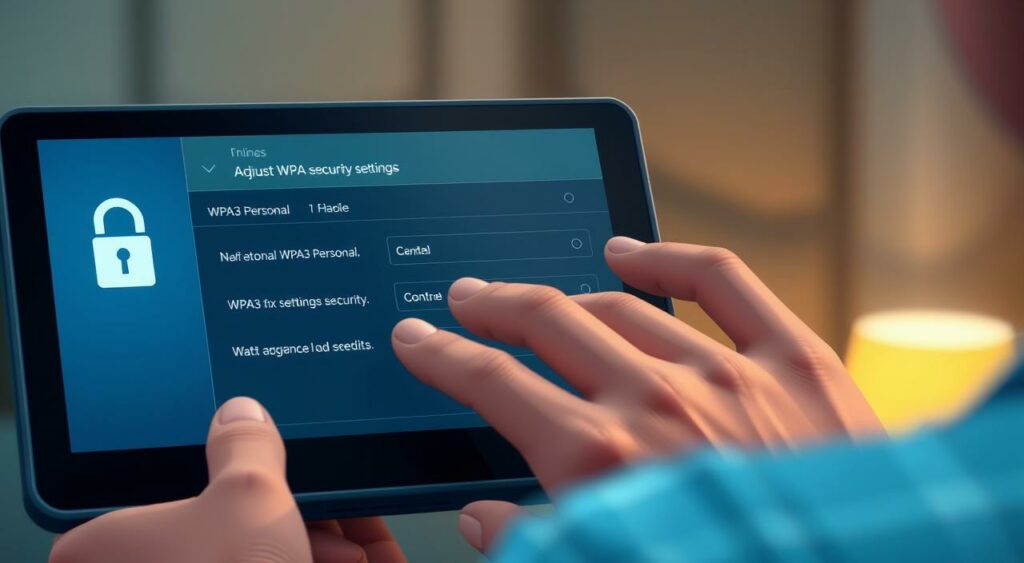
Implementing WPA3-Personal with Simultaneous Authentication of Equals (SAE) enhances your Wi-Fi network’s security. SAE is a key feature that provides robust protection against password guessing attacks.
Configuration Steps for Personal Networks
To configure WPA3-Personal with SAE, follow these steps:
- Navigate to Wireless > Configure Access control > security.
- Select the Password option and enter your password.
- Set the WPA encryption selection to WPA3 Only.
- For Wi-Fi 7 APs, expand Advanced WPA3 settings and select GCMP256 as Cipher and SAE and SAE-EXT-KEY as the AKM.
- For Wi-Fi 6/6E APs without Wi-Fi 7 APs, expand Advanced WPA3 settings and select SAE as the AKM.
Passphrase Best Practices with SAE
When using SAE, it’s essential to follow best practices for passphrase creation:
Use a strong, unique passphrase that is resistant to guessing attacks. Avoid using easily guessable information such as names, birthdays, or common words.
Troubleshooting Common Issues
Common issues when implementing WPA3-Personal with SAE include device compatibility problems and authentication failures.
- Device Compatibility: Ensure your devices support WPA3 and SAE. Check with your device manufacturer for compatibility.
- Authentication Failures: Verify that your passphrase is correct and that your device is configured to use SAE.
- Troubleshooting: Use logs and debugging tools to identify the root cause of connection issues.
Enhanced Open (OWE) Implementation for Guest Networks
Implementing Enhanced Open (OWE) on your guest network can significantly boost its security posture. Enhanced Open, also known as Opportunistic Wireless Encryption (OWE), provides a secure connection for clients on open networks without the need for authentication.
Configuring OWE on Access Points
To configure OWE on your access points, you’ll need to enable OWE on your Wi-Fi network. This involves setting up a separate OWE SSID or configuring your existing open network to use OWE. The exact steps may vary depending on your access point model and firmware.
For instance, some access points may require you to enable OWE Transition Mode to support both OWE-capable and non-OWE clients. This mode allows your access point to broadcast both an open SSID and an OWE SSID, ensuring compatibility with a wide range of devices.
OWE Transition Mode for Mixed Client Support
OWE Transition Mode is crucial for environments with a mix of WPA3-capable and non-WPA3 devices. In this mode, your access point operates with both an open BSS and an OWE BSS. WPA3-capable clients will associate with the OWE SSID via the open SSID, while non-WPA3 clients will connect directly to the open SSID.
This transition mode ensures a seamless experience for all users, regardless of their device’s WPA3 capabilities.
Client Experience with Enhanced Open
When connecting to Enhanced Open networks, the client experience remains largely unchanged. Users will still see the open network SSID in their list of available networks. Behind the scenes, however, WPA3-capable devices will establish an encrypted connection using OWE, enhancing the security of their data transmission.
The security benefits of Enhanced Open are significant, as it protects users from eavesdropping and man-in-the-middle attacks on open networks. By implementing OWE, you can provide a more secure environment for your guests without altering their connection experience.
Special Considerations for Wi-Fi 6E and Wi-Fi 7 Networks
The latest Wi-Fi standards, Wi-Fi6E and Wi-Fi7, demand enhanced security measures. As you migrate to these newer technologies, it’s crucial to understand the specific security requirements and how they impact your network infrastructure.
WPA3 Requirements for 6 GHz Operation
WPA3 is mandatory for Wi-Fi7 devices, particularly for features like Multi-Link Operation and 802.11be data rates. For 6 GHz operation, WPA3-Personal (SAE) with GCMP256 as the cipher and SAE-EXT-KEY or FT-SAE-EXT-KEY as AKMs is required. Similarly, WPA3-Enterprise demands AES (CCMP128) and 802.1X-SHA256 or FT+802.1X as AKM. Enhanced Open (OWE) with GCMP256 is also necessary for open networks requiring encryption without passwords.
| Security Feature | WPA3-Personal | WPA3-Enterprise | Enhanced Open |
|---|---|---|---|
| Cipher | GCMP256 | AES (CCMP128) | GCMP256 |
| AKM | SAE-EXT-KEY or FT-SAE-EXT-KEY | 802.1X-SHA256 or FT+802.1X | N/A |
Wi-Fi7 Security Mandates
Wi-Fi7 security mandates include Protected Management Frames (PMF) and Beacon Protection, both of which are mandatory. These features enhance the overall security posture of your Wi-Fi network, protecting against various types of attacks and ensuring the integrity of your wireless communications.
Future-Proofing Your Network
Implementing WPA3 now prepares your network for future Wi-Fi generations. By selecting hardware that can support emerging security standards through firmware updates, you’re investing in a more secure and resilient network. Establishing strong security practices aligns with industry direction and supports new wireless applications and use cases, ultimately reducing costs and disruption in future upgrades.
To future-proof your network, create a security roadmap that anticipates future requirements. This proactive approach will ensure your network remains secure and adaptable as new technologies emerge.
Transition Disable: Preventing Downgrade Attacks
Downgrade attacks can be mitigated with WPA3’s Transition Disable feature, which enhances your network’s security posture. As you consider implementing WPA3, understanding this feature is crucial for maintaining a secure wireless environment.
How Transition Disable Works
Transition Disable is a security feature that prevents devices from connecting to your network using older, less secure protocols like WPA2 when WPA3 is available. By disabling the transition to older protocols, you ensure that all devices use the more secure WPA3 standard, thereby reducing the risk of downgrade attacks. This feature is particularly useful in environments where both WPA2 and WPA3 devices coexist.
Key Benefits:
- Enhanced security by enforcing WPA3
- Prevention of downgrade attacks
- Improved overall network security posture
When and How to Enable This Feature
You should enable Transition Disable when you’re confident that all devices on your network support WPA3. To do this, you’ll need to access your network’s configuration settings, typically through a network management interface or controller. It’s essential to ensure that all access points and client devices are configured to use WPA3 before enabling this feature.
Potential Pitfalls to Avoid
While Transition Disable enhances security, it can cause connectivity issues if not implemented carefully. For instance, in a multi-location deployment with varying security settings, enabling Transition Disable could disconnect clients that roam between locations with different WPA2/WPA3 configurations. To avoid such pitfalls, it’s crucial to have a uniform security policy across all locations.
| Potential Issue | Description | Mitigation Strategy |
|---|---|---|
| Inconsistent Security Settings | Different WPA2/WPA3 configurations across locations | Implement uniform WPA3 settings across all locations |
| Legacy Device Support | Older devices that only support WPA2 | Upgrade or replace devices to support WPA3 |
| Roaming Issues | Clients experiencing disconnects when roaming | Ensure consistent WPA3 settings across all access points |
By understanding the implications of Transition Disable and planning its implementation carefully, you can significantly enhance your network’s security while minimizing potential disruptions.
Monitoring and Validating Your WPA3 Implementation
As you complete your WPA3 migration, it’s crucial to verify that your implementation is functioning as intended. Monitoring and validating your WPA3 setup ensures that your network remains secure and performs optimally.
Tools for Verifying Proper WPA3 Operation
To verify that WPA3 is working correctly, you’ll need the right tools. Network analyzers like Wireshark can help you inspect WPA3 traffic and ensure that devices are connecting using the new protocol. Additionally, many modern access points and WLAN controllers offer built-in tools for monitoring WPA3 connections and detecting potential issues.
Key features to look for in monitoring tools include:
- Ability to distinguish between WPA2 and WPA3 connections
- Detailed logs of authentication attempts and failures
- Real-time monitoring of connected devices and their security protocols
Security Logging and Alerting
Effective security logging and alerting are crucial for maintaining the integrity of your WPA3 implementation. Ensure that your WLAN infrastructure is configured to log security-related events, such as authentication failures or suspicious activity. These logs can help you identify potential security threats and take proactive measures to mitigate them.
“Logging and monitoring are essential for detecting and responding to security incidents in a timely manner.” –
Performance Impact Assessment
While WPA3 offers enhanced security, it’s also important to assess its impact on your network’s performance. Modern hardware typically shows minimal performance impact from WPA3 implementation. However, older devices might experience some degradation due to the increased computational overhead of WPA3’s advanced security features.
| Operation | WPA2 Performance | WPA3 Performance |
|---|---|---|
| Authentication | Baseline | Minimal impact |
| Data Transfer | Baseline | Negligible impact for modern devices |
To optimize performance while maintaining strong security, consider upgrading older devices or implementing Quality of Service (QoS) policies to prioritize critical applications.
Troubleshooting WPA3 Migration Issues
Troubleshooting WPA3 migration issues requires a systematic approach to identify and resolve problems efficiently. As you transition to WPA3, you may encounter various challenges, from connection issues to legacy device compatibility problems.
Common Connection Problems and Solutions
One of the primary issues during WPA3 migration is connection problems. These can arise due to incorrect configuration or incompatible devices. To resolve these issues, ensure that your access points and client devices support WPA3. Check your device configurations and update firmware where necessary. For instance, if a device is not connecting, try resetting it or updating its drivers.
Key steps to troubleshoot connection issues:
- Verify WPA3 compatibility on all devices
- Check for firmware updates
- Review device configurations
- Reset devices if necessary
Dealing with Legacy Devices
Legacy devices that do not support WPA3 can complicate the migration process. To address this, you can use WPA3’s Transition Mode, which allows both WPA2 and WPA3 devices to coexist on the same network. Identify legacy devices and either upgrade them or segregate them on a separate network if possible.
Consider the following strategies for legacy devices:
- Upgrade legacy devices to WPA3-compatible firmware or hardware
- Use Transition Mode to facilitate a gradual migration
- Segregate legacy devices on a separate network or VLAN
When to Roll Back and Try Again
Sometimes, despite your best efforts, issues persist, and it becomes necessary to roll back to the previous WLAN configuration. This decision should be based on the severity of the issues and their impact on your network operations. If connection issues or device incompatibilities cause significant disruptions, rolling back allows you to troubleshoot without affecting business continuity.
Criteria for rolling back include:
- Persistent connection issues affecting a significant number of users
- Incompatibility issues with critical devices
- Significant performance degradation
As emphasized by networking experts, “A temporary rollback can be a prudent decision to maintain business continuity while resolving underlying issues.”
Real-World WPA3 Migration Case Studies
WPA3 migration case studies from different sectors reveal the complexities and benefits associated with enhancing Wi-Fi security. As organizations transition from WPA2 to WPA3, they face unique challenges based on their specific environments and requirements.
Enterprise Network Migration Success Story
A leading enterprise successfully migrated its entire network to WPA3, enhancing its WLAN security. The migration involved configuring WPA3-Enterprise with 802.1X authentication and implementing Transition Mode to support both WPA2 and WPA3 devices. This approach allowed for a seamless transition, minimizing disruptions to users.
- Conducted a thorough inventory of devices to ensure compatibility.
- Implemented a phased rollout across different departments.
- Utilized SSID segregation to isolate critical infrastructure.
Healthcare Environment Implementation
In a healthcare setting, WPA3 migration was crucial for securing patient data and medical devices connected to the WLAN. The implementation involved configuring WPA3-Personal with SAE (Simultaneous Authentication of Equals) for guest networks and WPA3-Enterprise for staff. The healthcare organization also enabled Protected Management Frames (PMF) to prevent interference and eavesdropping.
The deployment highlighted the importance of balancing security with accessibility, ensuring that medical staff could quickly access necessary resources while maintaining a secure SSID.
Educational Institution Deployment
An educational institution faced the challenge of migrating to WPA3 across a diverse campus with a mix of modern and legacy devices. The deployment strategy included implementing WPA3-Personal for students and WPA3-Enterprise for faculty and staff. The institution also utilized WPA2/WPA3 Transition Mode to accommodate older devices, ensuring that all students had access to network resources.
The institution’s IT team emphasized the importance of user education, providing workshops and resources to help the campus community understand the benefits of WPA3 and how to connect to the new WLAN securely.
Securing Your Wireless Future with WPA3
Migrating to WPA3 is not just about improving current security; it’s about laying the groundwork for future wireless security standards. As you consider your wireless network’s future, upgrading to WPA3 is a crucial step in enhancing your overall security posture.
By adopting WPA3, you benefit from significant security improvements, including enhanced protection against brute-force attacks and improved data encryption. This migration positions your organization to better respond to the evolving threat landscape, ensuring your network remains secure.
WPA3 is foundational for emerging wireless technologies and applications, supporting the next generation of wireless innovations. Viewing security as an ongoing process rather than a one-time migration is crucial. Investing in WPA3 now provides both immediate security benefits and long-term protection for your network.
- Summarizing the key benefits of WPA3 migration, including enhanced security features.
- Understanding WPA3’s role in supporting future wireless technologies.
- Recognizing the importance of ongoing security processes.
To begin your WPA3 migration journey, recall the practical steps outlined in this article. Assess your current wireless security posture and develop a comprehensive WPA3 migration plan. By doing so, you’ll be well-prepared for the future of wireless security.
FAQ
What is WPA3, and how does it improve upon WPA2?
WPA3 is the latest Wi-Fi security protocol that provides enhanced protection against cyber threats. It improves upon WPA2 by introducing new security features such as Protected Management Frames (PMF), Simultaneous Authentication of Equals (SAE), and Enhanced Open. These features provide better protection against eavesdropping, tampering, and forgery attacks.
How does SAE (Simultaneous Authentication of Equals) work, and what are its benefits?
SAE is a key management protocol used in WPA3-Personal networks. It provides a more secure authentication process by using a password-based authentication mechanism that is resistant to offline dictionary attacks. SAE also generates unique encryption keys for each device, enhancing the overall security of your network.
What is the purpose of Protected Management Frames (PMF) in WPA3?
PMF is a security feature that protects Wi-Fi management frames from being tampered with or forged. It ensures the integrity and authenticity of management frames, preventing attacks such as deauthentication and disassociation. This feature is essential for maintaining the security and stability of your wireless network.
Can I use WPA3 with my existing Wi-Fi infrastructure?
To use WPA3, you need to check if your access point and client devices support WPA3. You may need to upgrade your hardware or firmware to be compatible with WPA3. WPA3 is designed to be backward compatible with WPA2, allowing for a smooth transition using WPA3 Transition Mode.
How does WPA3-Enterprise enhance security for business networks?
WPA3-Enterprise builds upon the existing 802.1X authentication framework, providing an additional layer of security. It uses AES-256 encryption and supports RADIUS authentication, making it more secure than WPA2-Enterprise. This enhanced security is particularly important for businesses handling sensitive data.
What is Enhanced Open, and how does it protect open networks?
Enhanced Open is a feature of WPA3 that provides encryption for open networks, protecting users from eavesdropping and man-in-the-middle attacks. It uses Opportunistic Wireless Encryption (OWE) to encrypt data transmitted over open networks, ensuring that your data remains confidential even on unsecured networks.
What are the benefits of using WPA3 Transition Mode during migration?
WPA3 Transition Mode allows you to operate your network in a mixed mode, supporting both WPA2 and WPA3 devices. This mode enables a seamless transition to WPA3, allowing you to gradually upgrade your devices without disrupting your network operations.
How can I verify that my WPA3 implementation is working correctly?
You can use various tools to verify that your WPA3 implementation is working correctly. These tools can help you check for authentication and encryption issues, ensuring that your network is secure and functioning as expected. Regular security logging and alerting can also help you monitor your network’s security posture.